Vizzybl LogoVizzybl LogoVizzybl

Gemini Enterprise (Google Cloud Marketplace)

Buy the AI Visibility Agent on Google Cloud Marketplace, add it to Gemini Enterprise, and ask about your AI visibility in plain language. Includes what to do if the purchase is pending, no agents are found, or registration fails.

Last updated

Gemini Enterprise (Google Cloud Marketplace)

Ask about your brand's AI visibility from inside Gemini Enterprise. Buy the AI Visibility Agent on Google Cloud Marketplace and add it to your Gemini Enterprise app. Your team can then ask questions in plain language and get answers from your own Vizzybl workspace.

This page is for the Gemini Enterprise administrator who adds the agent, and for the first colleague who signs in.

Before you begin

You need:

  • A Gemini Enterprise app in a Google Cloud project, with the Discovery Engine API enabled.
  • Two roles on that project for whoever adds the agent: Gemini Enterprise Admin and Consumer Procurement Entitlement Viewer. Without the second, Gemini Enterprise cannot see your purchase.
  • The purchase made by the same organization as the Gemini Enterprise app.
  • A work email address for the first person who signs in to Vizzybl. That person becomes the owner of your workspace, and colleagues with the same email domain join it automatically. A personal address, such as Gmail, cannot own a Marketplace workspace.

How long it takes

StepUsually takes
Vizzybl approves your purchaseUnder a minute, automatically
Google activates your subscriptionAbout 10 to 15 minutes
The agent appears in Gemini EnterpriseA few minutes after activation

Step 1: Buy the AI Visibility Agent

Find AI Visibility Agent by Vizzybl on Google Cloud Marketplace, or open the private offer you were sent. Choose the plan and accept. Google confirms that your order request has been sent to Vizzybl:
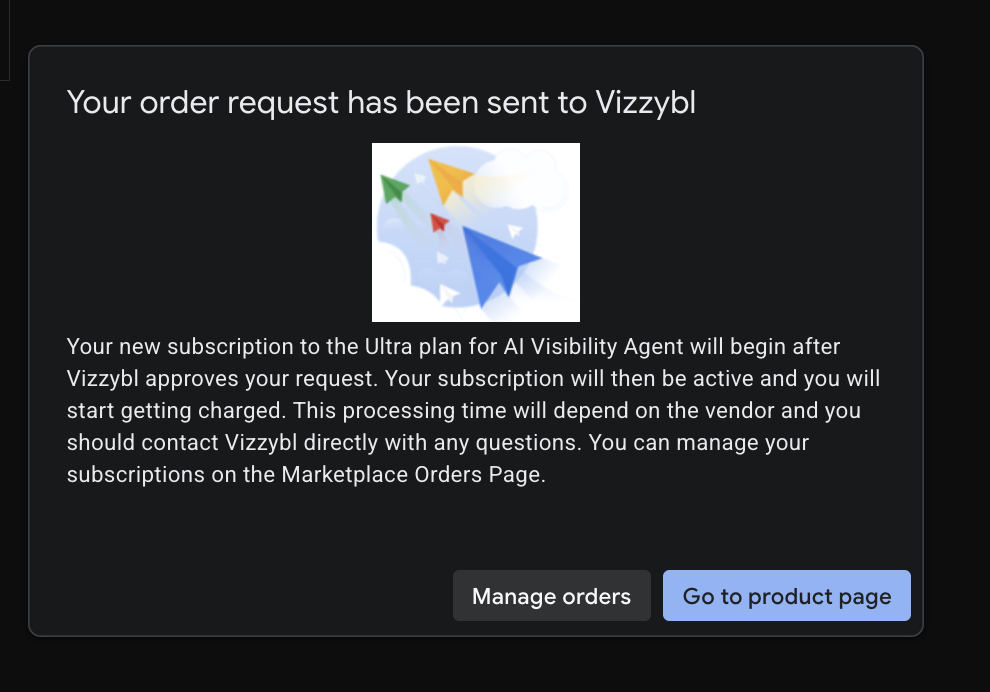
The order confirmation after buying the AI Visibility Agent

You don't need to contact us. Vizzybl approves the request automatically, usually within a minute.

Step 2: Wait for Google to activate it

After our approval, Google activates your subscription. Until it does, the product page shows Purchase pending provider approval:
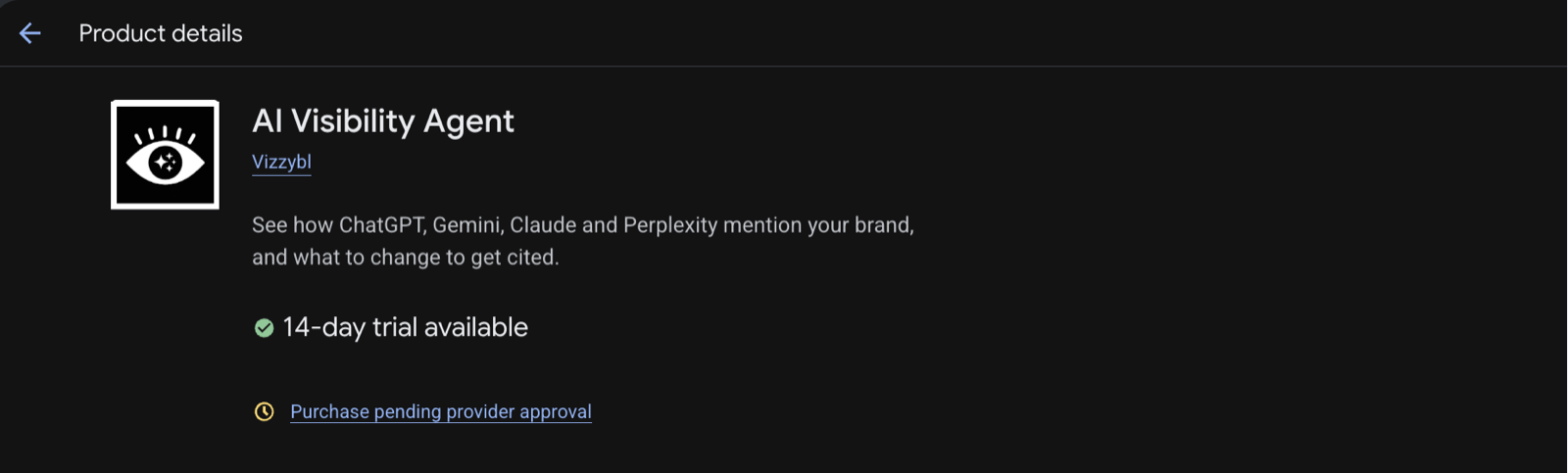
The product page while the purchase is waiting to be activated

This usually clears in about 10 to 15 minutes. To check, open Manage orders in Marketplace: the order shows Active when it's ready. An offer with a later start date becomes active on that date.
Step 3: Add the agent in Gemini Enterprise

  1. In the Google Cloud console, go to Gemini Enterprise and open your app.
  2. Click Agents, then Add agent.
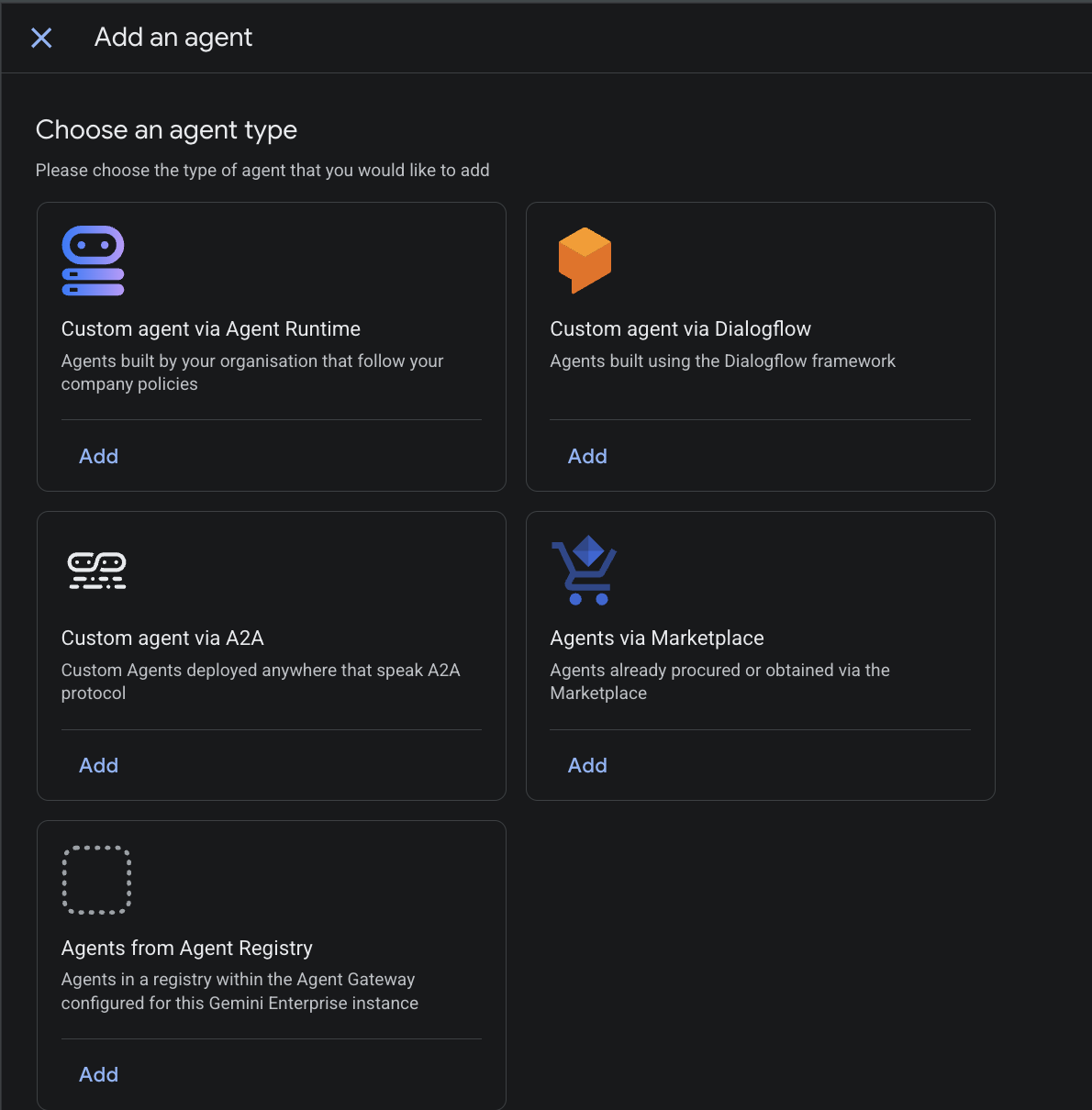
  3. Under Choose an agent type, click Add on Agents via Marketplace.

Choose an agent type, then Agents via Marketplace

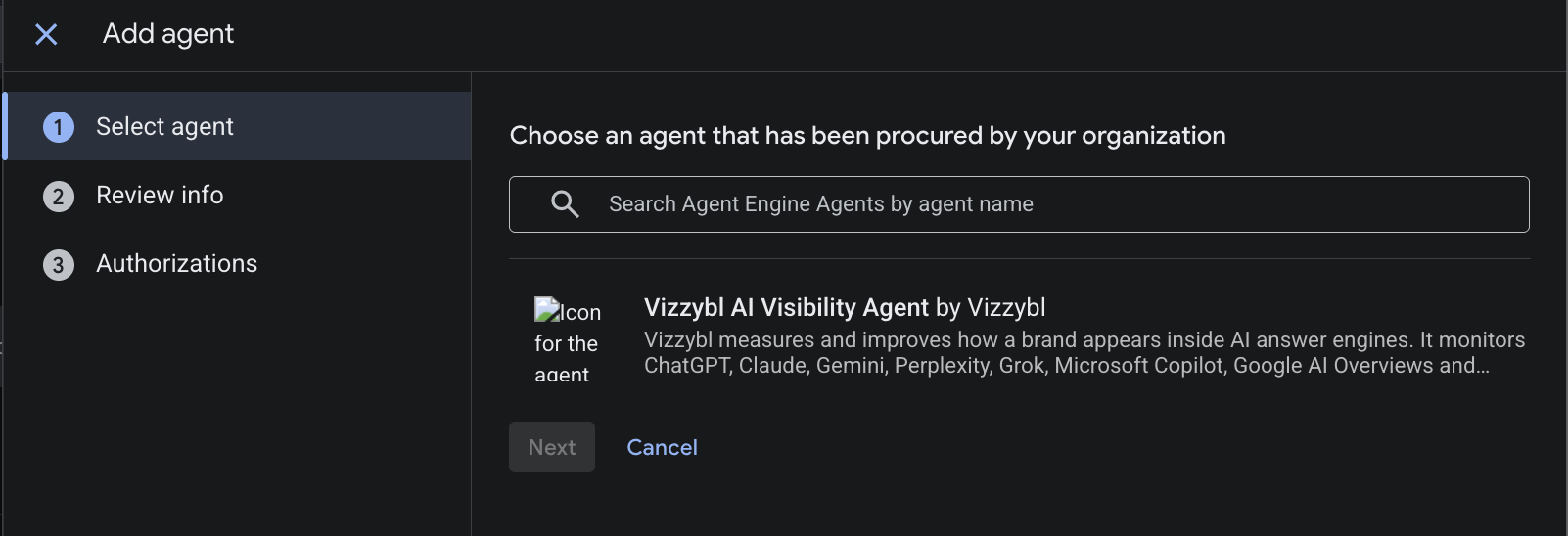
  1. Under Choose an agent that has been procured by your organization, select Vizzybl AI Visibility Agent and click Next. If you see No agents found instead, see Troubleshooting.

Select the Vizzybl AI Visibility Agent

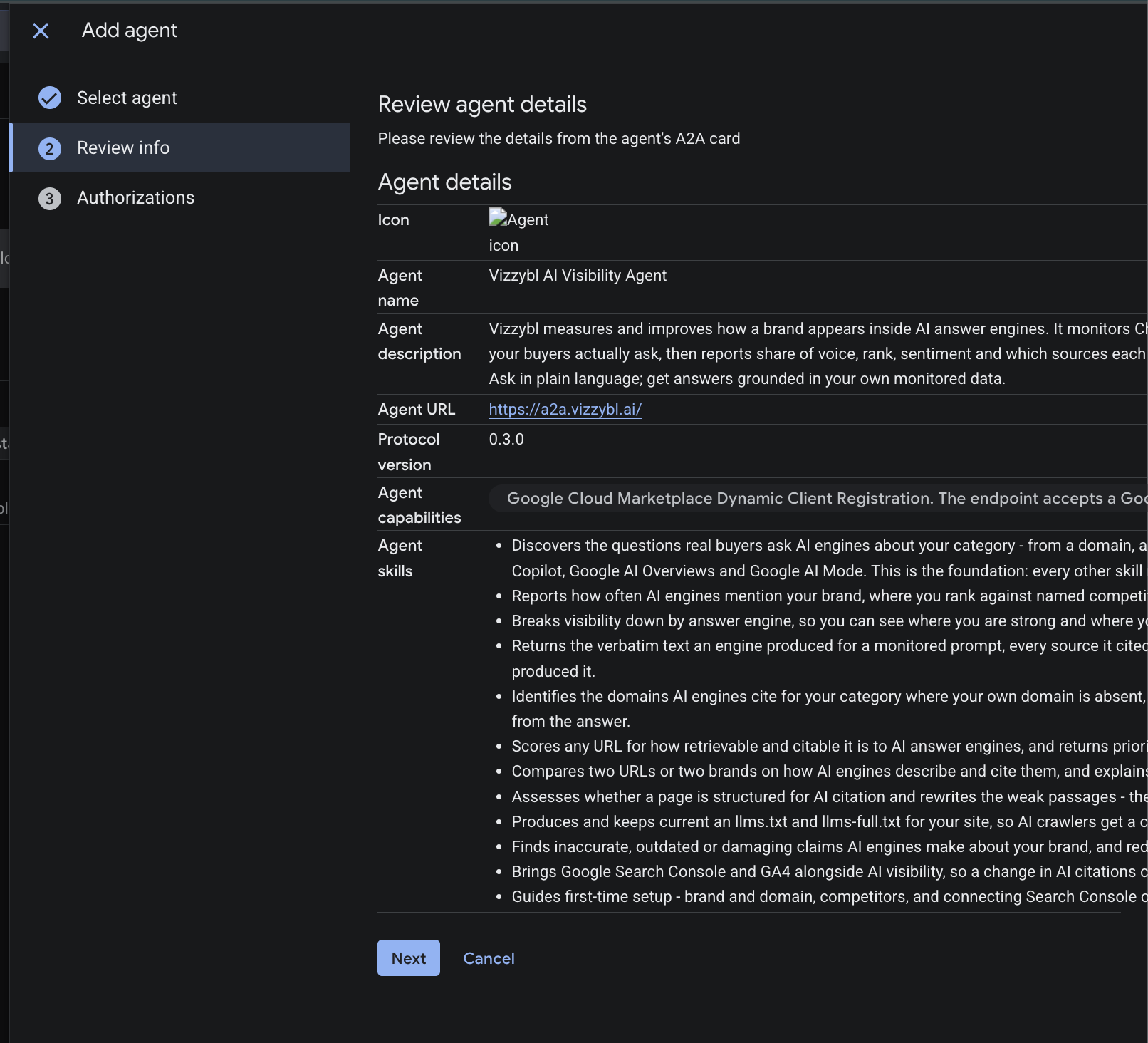
  1. Review info shows the agent's details from its agent card: name, description, skills, and the agent URL https://a2a.vizzybl.ai/. Click Next.

Review the agent's details

  1. On Authorizations, keep the values filled in from the agent card:

    • Use dynamic client registration for generating credentials, selected
    • Authorization URL: https://vizzybl.ai/oauth/consent
    • Token URL: https://vizzybl.ai/api/oauth/token
    • Scopes: invoke:agent
    • Use HTTP Basic authentication: either setting works

    Click Finish. Gemini Enterprise registers itself with Vizzybl, so you don't need a client ID or secret from us.
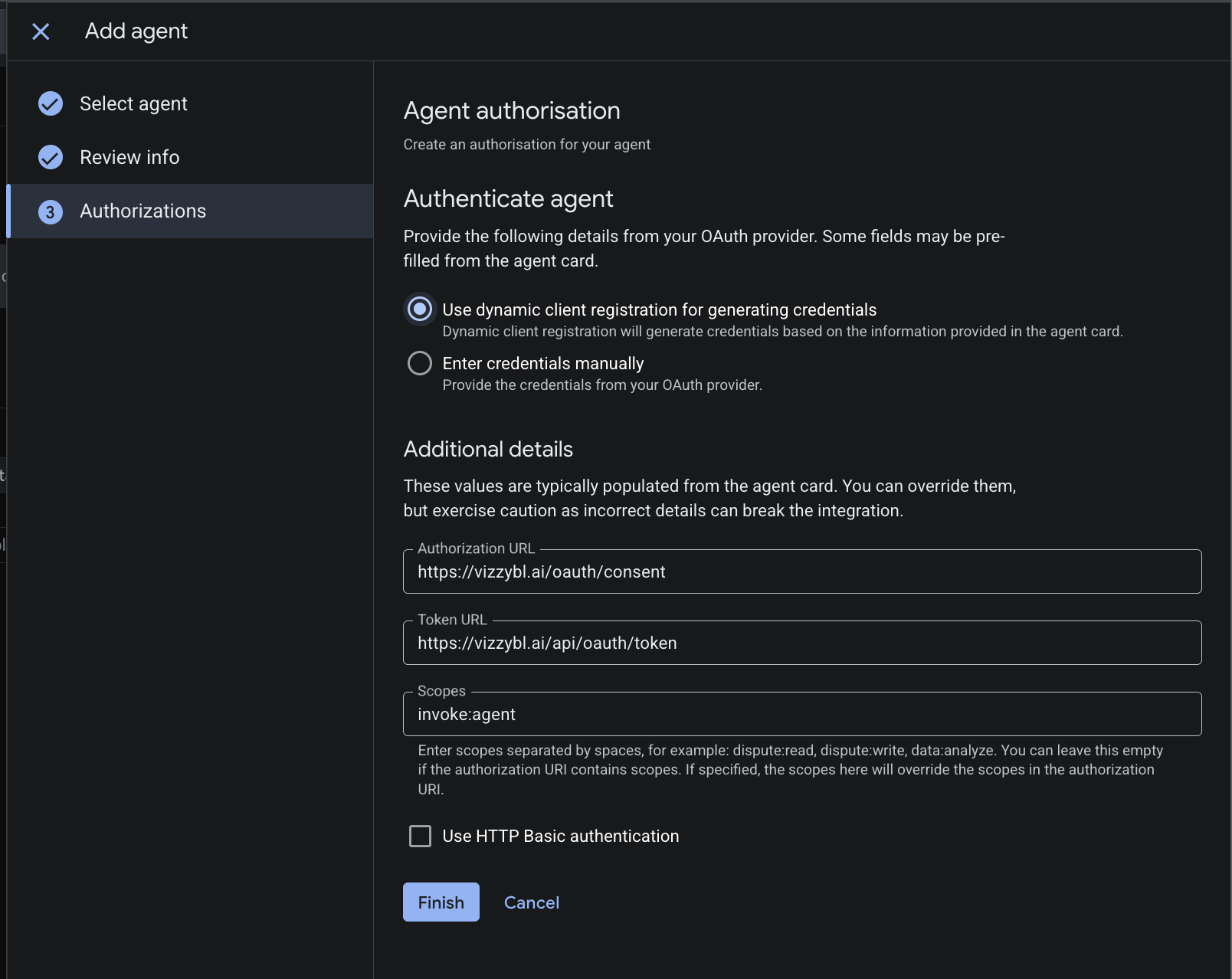
Authorization details, filled in from the agent card

Step 4: Sign in to Vizzybl the first time you use it

The first time someone asks the agent a question, Gemini Enterprise opens a Vizzybl sign-in window.

  1. Sign in with your work Google account. If you're new to Vizzybl, this creates your Vizzybl account.
  2. The first person to sign in chooses where the workspace's data is stored, then approves. This creates your organization's Vizzybl workspace, named after your company's email domain without its ending (example for example.com) and funded by your Marketplace plan, with that person as its owner.
  3. Everyone after that signs in with an address on the same email domain and approves. They join the workspace as members.

Gemini Enterprise remembers the sign-in, so you aren't asked every time.

Step 5: Set up your brand

A new workspace has no brand yet, so the agent has nothing to report on until you add one. Sign in at vizzybl.ai with the same account. The workspace appears in the brand switcher under that name, marked Setup needed. Select it, then follow Brand Setup: your brand, website and competitors. Then choose the questions to monitor (Prompt Monitoring). Monitoring runs nightly, so answers fill in from the next day.

Step 6: Ask questions

In Gemini Enterprise, ask in plain language. For example:

  • Show my recent Vizzybl activity: my latest audits and the questions I'm monitoring.
  • What was our share of voice in AI answers over the last 7 days, for each engine?
  • Which competitor leads on ChatGPT?
  • List the questions I'm monitoring.
  • Start monitoring this question across all engines: "Which CRM is best for a 50-person company?"
  • Run a GEO audit on https://www.example.com. See Run an audit from Gemini Enterprise: the results take a few minutes, and Gemini Enterprise doesn't tell you when they're ready.

A few things work differently from the Vizzybl web app:

  • Answers are text and tables. Charts and side panels appear only in the web app.
  • A question the agent creates for monitoring is saved as a draft. Activate it on the Prompts page at vizzybl.ai.
  • The agent works with your Marketplace workspace only.

Run an audit from Gemini Enterprise

An audit checks how ready one page of your site is to be found and cited in AI answers. From Gemini Enterprise it runs in the background, and Gemini Enterprise doesn't tell you when it has finished: that notice appears only in the Vizzybl app. So ask for the results yourself, in this order:

  1. Start the audit. Ask: Run a GEO audit on https://www.example.com/pricing. Give the full address, starting with https://. The agent replies that the audit has started.
  2. Wait a few minutes. You can ask other questions, or close the chat; the audit keeps running.
  3. Check it has finished. Ask: Has my audit of example.com finished? If it's still running, ask again in a couple of minutes.
  4. Ask for the results. Once it has finished, ask for example:
    • What's the score for my latest audit of example.com?
    • What should I fix first on example.com?
    • Summarise my audit of example.com for my team.

Check it has finished before you ask for results. Until the new audit is complete, a question about "my audit of example.com" is answered from that site's previous completed audit, if it has one.

For the full report with charts, open the Audits section from your dashboard at vizzybl.ai. The notice that the audit has finished appears there too.

What it costs. An audit uses credits from your workspace; see Credits and Pricing for the price. The credits are held when the audit starts and refunded automatically if it fails (Will I get refunded if my audit fails?).

Troubleshooting

"Purchase pending provider approval" or "Activating"

This is normal for the first few minutes. Vizzybl approves your purchase automatically within about a minute, then Google activates it, usually within 10 to 15 minutes. Refresh the product page or Manage orders.

An offer with a later start date stays pending until that date. If yours is still pending an hour after purchase, send us a message with your order details.
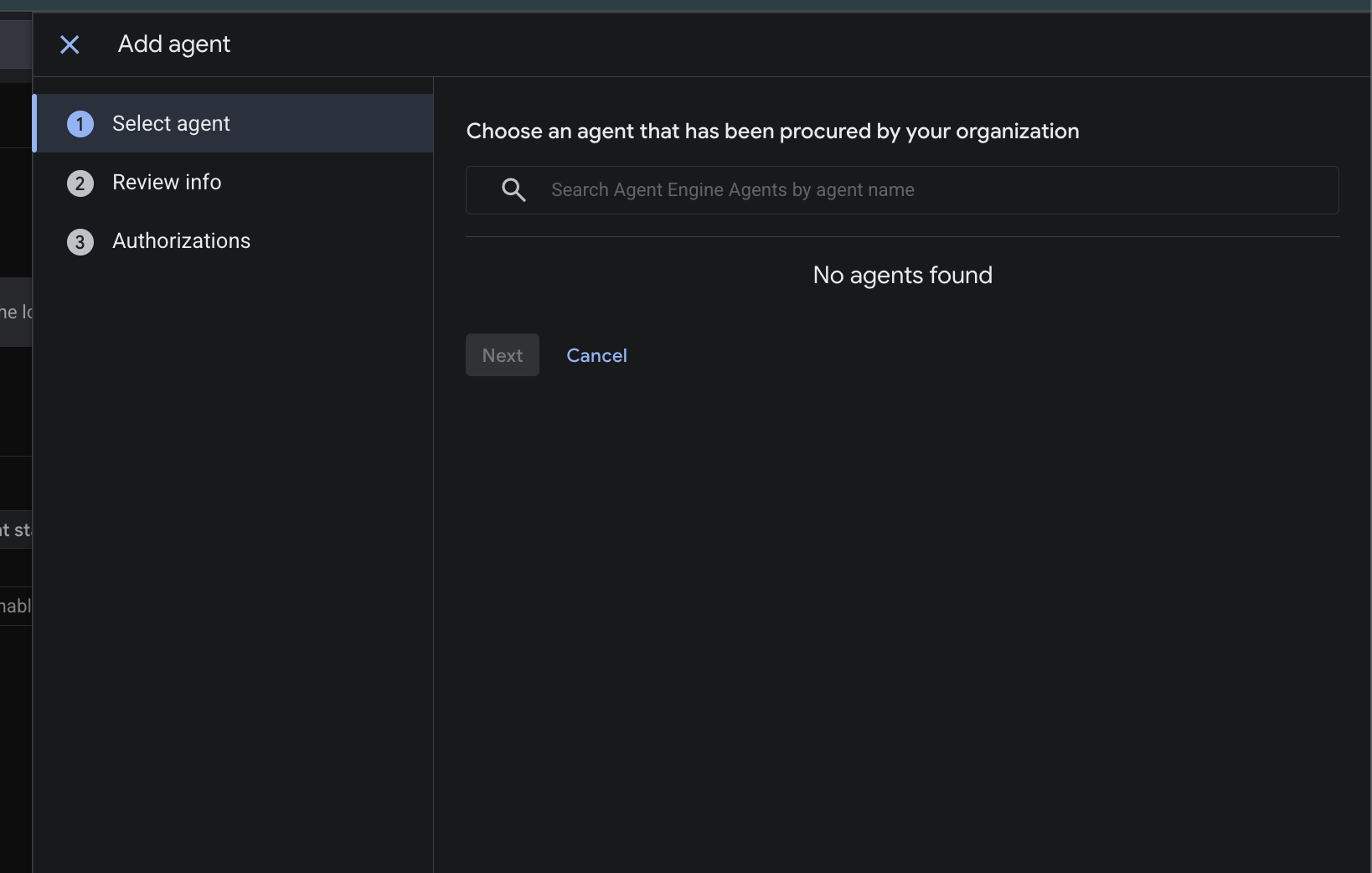
"No agents found" when adding from Marketplace

No agents found under Agents via Marketplace

Gemini Enterprise lists only purchases that are active, and the search box stays greyed out while there is nothing to list.
  1. Wait until Manage orders shows the order as Active. Give it a few more minutes to reach Gemini Enterprise, then close the panel and click Add agent again.
  2. Check that your Gemini Enterprise app is in the same organization that made the purchase.
  3. Check that you have both roles on the project: Gemini Enterprise Admin and Consumer Procurement Entitlement Viewer.

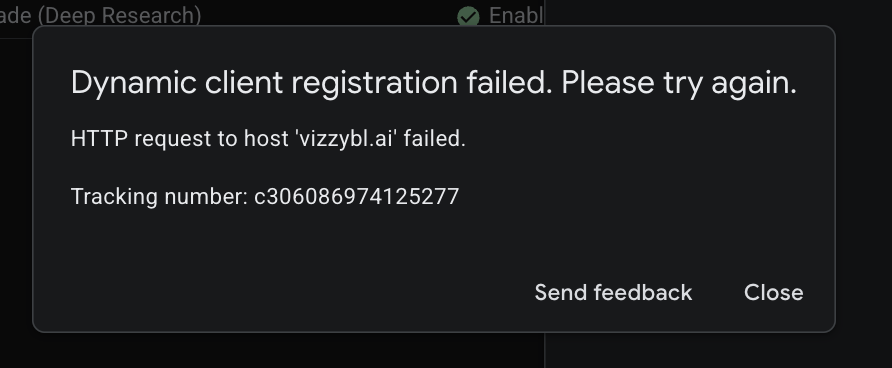
"Dynamic client registration failed"

Dynamic client registration failed

This means Vizzybl did not register your Gemini Enterprise app, and the message doesn't say why.

  1. Check that the order is Active in Manage orders. A pending or cancelled purchase can't be registered.
  2. Wait a minute, then click Finish again.
  3. If it fails again, send us a message with the tracking number from the message and the time you tried. We can see the exact reason on our side.

The sign-in window turns you away

  • The first sign-in uses a personal address (Gmail, Outlook and similar): sign in with your work account instead.
  • Your email domain differs from the workspace owner's: only addresses on the owner's domain join automatically. Ask the owner to invite you from Team in the Vizzybl app, then sign in again.

The agent says our safety filter flagged your request

Vizzybl screens every request for prompt injection. Phrases about accounts and access, such as "connect to my account" or "log in to Vizzybl", are sometimes flagged. Ask about your data directly instead, for example "Show my latest audits".

The agent has no data

Your workspace has no brand yet, or monitoring hasn't run since you added one. See Step 5.