Query your Vizzybl GEO data — Share of Voice, prompts, AI answers, citations, and products — directly inside Claude, and run audits or add prompts with your confirmation.
Last updated
Work with your Vizzybl GEO data — Share of Voice, monitored prompts, the actual AI answers, and citations — directly inside Claude. The Vizzybl skill teaches Claude to call the Vizzybl public API, so you can ask questions in plain language instead of opening a dashboard.
Vizzybl covers Claude natively, alongside ChatGPT, Gemini, Perplexity, Grok, Copilot, Google AI Overviews and Google AI Mode.
You need:
vzbl_live_ and is shown only once — store it like a password.You can revoke a key at any time from the same screen. Revocation takes effect immediately.
The skill is a folder — SKILL.md plus a full references/api-reference.md and an openapi.json spec. How you add it depends on where you use Claude.
⬇ Download the packaged skill (.zip)
Claude Code — as a plugin (recommended). Add the Vizzybl marketplace once, then install:
/plugin marketplace add vizzybl-ai/claude-plugins
/plugin install vizzybl-geo@vizzybl
Installing this way means updates arrive automatically — Claude Code checks the marketplace in the background and prompts you to reload when a new version ships.
Claude Code — as a folder. Or copy the folder into your skills directory:
~/.claude/skills/vizzybl-geo/.claude/skills/vizzybl-geo/Claude Desktop or claude.ai. Upload the skill .zip under Settings → Features → Skills (Pro, Max, Team, or Enterprise). The skill calls the Vizzybl API, so it only works where Claude has network access — enable network access for skills in your workspace. Skills on the Claude API surface have no network access and can't reach the API.
Because the skill calls the Vizzybl API, claude.ai must be allowed to reach it. In your Claude settings:
vizzybl.ai and click Add.Without this, the skill's requests fail with a network / connection error.
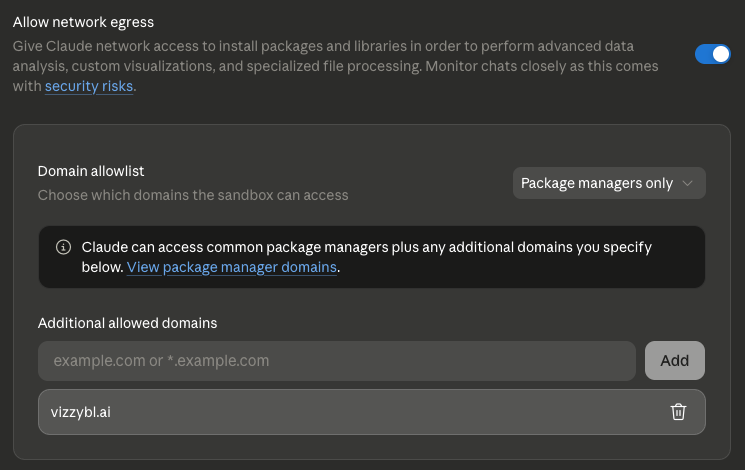
The skill reads your key from the VIZZYBL_API_KEY environment variable:
export VIZZYBL_API_KEY="vzbl_live_..."
If it isn't set, Claude asks for it once and uses it for the session.
Five commands cover the common workflows:
| Command | What it does |
|---|---|
/vizzybl-geo:pulse [days] | Week-over-week share of voice, rank, and sentiment |
/vizzybl-geo:answers [topic] | The verbatim AI answers for your monitored prompts, grouped by engine |
/vizzybl-geo:gaps [domain] | Citation gaps — domains AI engines cite where yours isn't |
/vizzybl-geo:scorecard [days] | Per-engine visibility breakdown |
/vizzybl-geo:audit <url> | Run a GEO audit on a URL — spends credits |
/vizzybl-geo:audit is the one command Claude can never trigger on its own: it is
marked user-invoked only, so an audit runs when you type it and not otherwise.
For anything else, just ask in plain language:
Claude calls the API, paginates when there is more data, and summarizes the results — grouped by engine when you compare answers.
If your key carries a write scope, you can also ask it to act — "audit our pricing page" or "start tracking these five questions" — and it will confirm the cost with you before spending anything.
| Area | Endpoint |
|---|---|
| Snapshot + trend | /api/v1/stats, /api/v1/visibility |
| Brand, engines, plan | /api/v1/brand/me, /api/v1/engines, /api/v1/quota |
| Monitored prompts | /api/v1/prompts, /api/v1/prompts/{promptId}, /api/v1/prompts/{promptId}/metrics-history, /api/v1/tags |
| Verbatim AI answers | /api/v1/prompt-responses |
| Citations | /api/v1/citations, /api/v1/citations/prompts, /api/v1/citations/stats |
| Recommendations | /api/v1/recommendations |
| AI-bot crawler traffic | /api/v1/bot-traffic |
| Products | /api/v1/products, /api/v1/products/{productId}/metrics-history |
| GEO audits | /api/v1/audits, /api/v1/audits/{auditId} |
| Action | Endpoint | Scope | Cost |
|---|---|---|---|
| Run a GEO audit on a URL | POST /api/v1/audits | write:audits | Credits, settled when the audit completes |
| Create monitored prompts (up to 50) | POST /api/v1/prompts | write:prompts | Free |
| Re-scrape a prompt across engines | POST /api/v1/prompts/{promptId}/scrape | write:prompts | Charges prompt_monitor_run |
The skill is instructed to state what it is about to do and get your agreement before any call that spends credits, and to check your balance with /api/v1/quota first. Audits and scrapes are asynchronous — the skill gets an ID back immediately and polls for the result, so a "running…" answer is expected before scores appear.
Most of the API is read-only, and every key is scoped to a single workspace. Three endpoints write: they run a GEO audit, create monitored prompts, or re-scrape a prompt. Those need the exact write:audits / write:prompts scope — the read:* wildcard never grants a write — and the metered ones draw on your credit balance. If you created the key with All read access, the skill physically cannot spend anything. The full endpoint reference, parameters, and response shapes are in the references/api-reference.md file bundled with the skill.
read:* covers every read scope and no write scope — so a read-only key can never run an audit, create a prompt, or trigger a scrape.write:audits / write:prompts only when you want Claude to take those actions, and expect the skill to confirm with you each time. Check the balance with GET /api/v1/quota. No API key can change workspace settings, billing, or other keys.VIZZYBL_API_KEY.